For Klokki users · Not on sale yet

Moving on from Klokki? Bring your whole history.

Klokki's website says its development is on hold, and Freelime can import your whole Klokki history, from folders and tasks to notes, rates and billing status.

Free to join. Freelime isn't on sale yet and the price isn't set.

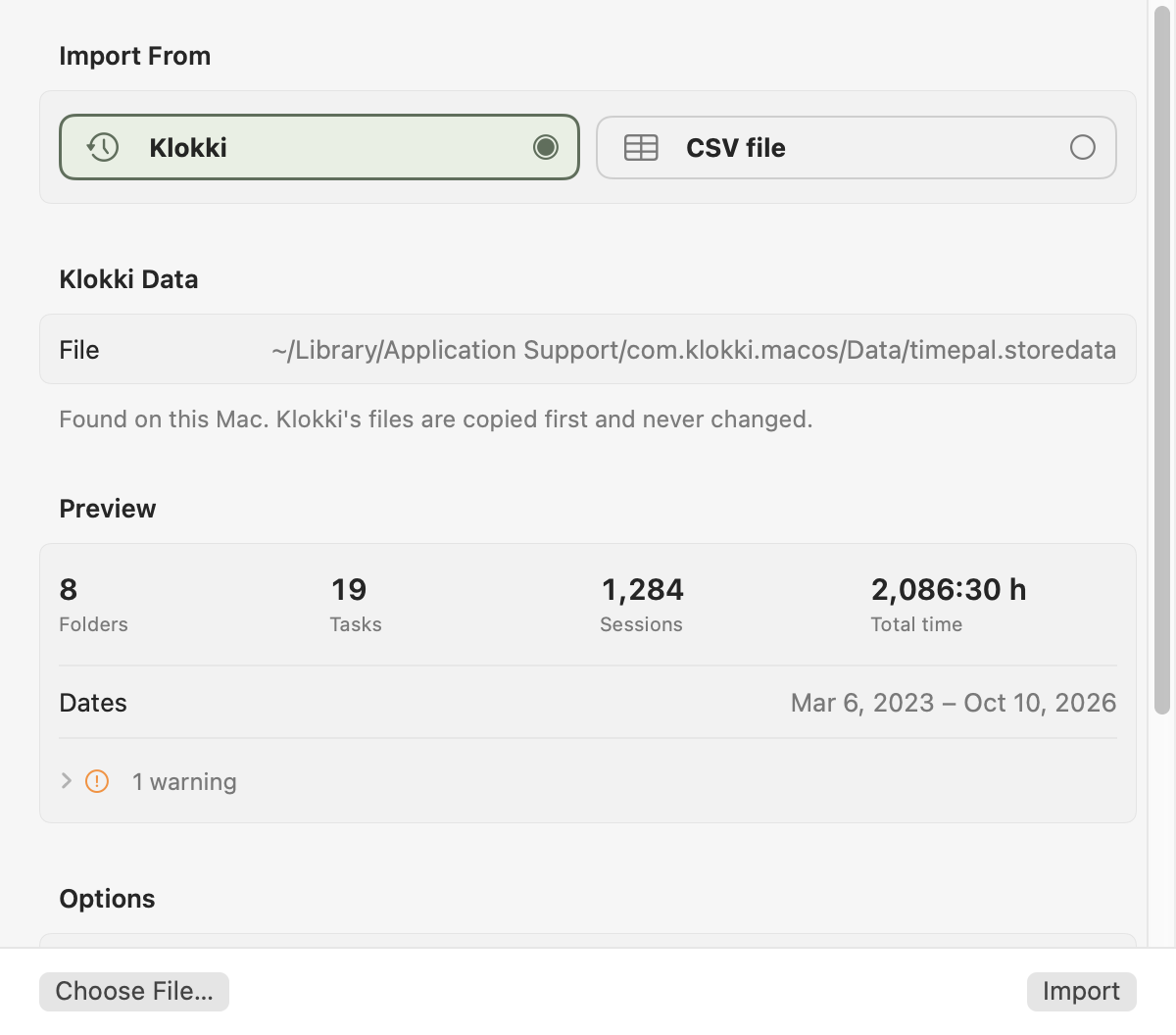
Freelime's Settings with Import from Klokki chosen: a preview of the Klokki data it found, with the number of folders, tasks and sessions, the total time and the dates they span. Below are the Choose File and Import buttons.

Settings › Import in Freelime. The preview comes before anything is imported. The figures are sample data.

What comes over

Your history arrives as it was.

Freelime reads Klokki's own data, or one of its backups, so there's nothing to export and nothing to retype.

What Freelime imports

  • Folders and tasks, with their nesting, order, names and notes, their colors (matched to Freelime's palette) and which ones are archived.
  • Every session, with its start and end and its notes.
  • Hourly rates on folders, tasks and sessions.
  • Billing: which folders and tasks are billable, and each session's status: non-billable, unbilled, billed (with its billed date) or paid.
  • If you want them, Klokki's settings: currency, rounding, idle time, notifications and Dock icon.

What it leaves out

  • Payment dates. Klokki didn't record any, so sessions Klokki has as paid arrive as Paid, without a date.
  • Klokki's Jira links and auto-tracking rules. The importer doesn't read them.
  • Other Klokki settings. Only settings that mean the same in both apps are copied.

Safe to try

Klokki's files stay untouched, and you can undo the import.

  • Klokki's files aren't changed.

    Freelime copies Klokki's database first and reads the copy, and it only reads a Klokki backup. The originals stay as they are.

  • You see a preview first.

    Folders, tasks, sessions, total time and the dates they span, before anything is imported.

  • A backup comes first.

    If Freelime already holds data, it saves a backup before it imports. The import itself is all or nothing.

  • You can undo it.

    “Add what's new” comes with Undo This Import. “Replace all Freelime data” comes with Restore Previous Data, which brings back the backup made just before.

Undo This Import removes what the import added. Sessions you've changed since are kept unless you say otherwise, and Klokki settings you took over stay until you change them.

How it works

Import in three steps.

Freelime isn't on sale yet. This is how the import works in the app today.

  1. Install Freelime, quit Klokki

    Quitting Klokki first means the import includes its latest sessions. Klokki can stay installed.

  2. Choose Klokki

    On first launch, if Klokki's data is in its usual place, Freelime opens Settings › Import with Klokki chosen. Any other time, open Settings › Import and choose Klokki yourself.

  3. Check the preview and import

    Look over what Freelime found. Choose “Add what's new” or “Replace all Freelime data”, leave “Also import Klokki settings” on if you want them, and click Import.

If Freelime doesn't find Klokki's data

Click Choose File… and pick Klokki's Data folder. It's in your Mac's Library:

Library › Application Support › com.klokki.macos › Data

You can also pick one of Klokki's own backups, a file ending in .klokup. (To open the Library folder in Finder, hold ⌥ while you open the Go menu.)

Day to day

What feels familiar, and what else there is.

What you'll recognize

  • A timer in the menu bar: start or pause with one click, click the time to open the panel.
  • Folders and tasks with colors, and an archive for the ones you're done with.
  • Hourly rates on folders, tasks and sessions.
  • Each session as non-billable, unbilled, billed or paid, with its billed date.
  • Rounding and an idle timeout. Klokki's settings can come along.
  • Reports that count a session on the day it started, as Klokki did.
  • Automatic backups. Freelime's go to your iCloud Drive, or to any folder you choose.

What else Freelime does

  • Billing your tracked time, or the hours you write in your notes, like “(1.5h)”: as your default, or per project or task.
  • Ticket detection: Jira keys and ServiceNow numbers in your notes, with a category for each entry.
  • ID budgets: paste your client's list of IDs and budgets, and Freelime counts your hours against each one.
  • The Work Log and client summaries, copied into a mail or saved as an image or a PDF.
  • A paid date next to the billed date, for one invoice or a whole history at once.
  • CSV import from Toggl Track, Clockify and Harvest, and from any other CSV file.

FAQ

Questions

Can I keep Klokki installed, or use both for a while?

Yes. Freelime never changes Klokki's data, so Klokki's own data stays exactly as it was. Freelime holds what Klokki had when you imported; sessions you track in Klokki afterwards don't appear by themselves. Import again later with “Add what's new” to bring them over. Just don't run both timers at once, or the same hours are tracked twice. If a timer is still running in Klokki when you import, it keeps running in Freelime (unless Freelime's own timer is running), so pause or quit Klokki first.

What happens if I import twice?

With “Add what's new”, which is the default, nothing is duplicated. Folders, tasks and sessions that came over before are recognized and skipped, so the second import adds only what's new since the first, and Freelime tells you how many sessions that is before you click Import. Sessions already in Freelime stay as they are, even if you've changed them since, in either app. “Replace all Freelime data” works differently: it saves a backup first, deletes the folders, tasks and sessions in Freelime and imports Klokki's data again.

Where is my data afterwards?

In Freelime's own database on your Mac. Klokki's data stays where it was. Freelime has no account and no server of its own for your data, and the app as it is today makes no network connections. A paid version is planned to check its subscription online, without sending your time-tracking data (see How will the license work?). It backs itself up automatically to a folder in your own iCloud Drive (so Apple's iCloud stores the backups), or to any folder you choose, and before an import it saves an extra backup of the data it already holds. Settings › About shows where the database and the backups are.

Does Freelime need Klokki to be running?

No. Freelime doesn't talk to the Klokki app. It reads the data files Klokki keeps on your Mac, or a Klokki backup. It's best to quit Klokki first, so those files include its latest sessions. After the import, Freelime reads Klokki's files only when you choose Klokki in Settings › Import again.

Will my billed and paid sessions stay billed and paid?

Yes. Sessions Klokki has as billed arrive as Billed, with their billed date, and paid ones as Paid. Klokki recorded no payment dates, so imported paid sessions have none. In a new Freelime, imported sessions bill their tracked time, which matches Klokki's own amounts.

Waitlist

Want Freelime on your Mac?

Freelime isn't on sale yet. Whether it's released as a paid Mac app depends, among other things, on how many people sign up. If it is, you'll hear about it by email. Joining is free and doesn't commit you to buying.

Join the waitlist

The form has an optional question about what you use for time tracking today. If that's Klokki, say so.