Guide · Not on sale yet

Send your client a clean time summary. As an email table, an image or a PDF.

Freelime, a Mac menu bar time tracker, turns a day, week, month or any date range into an hours report for your client. Paste it into an email, or save it as an image or a PDF.

Free to join. Freelime isn't on sale yet, the price isn't set, and it needs a Mac with Apple silicon.

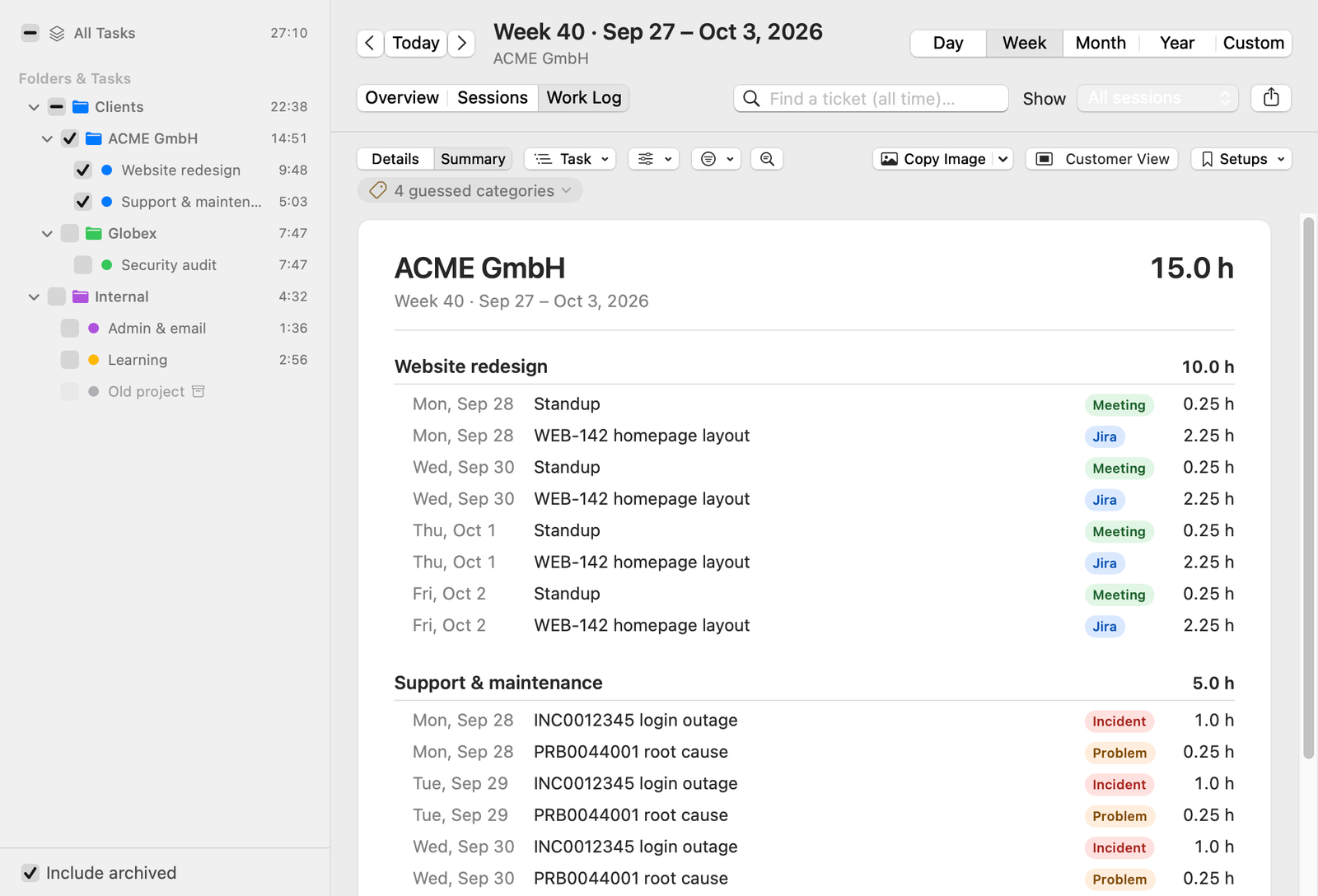
Freelime's Work Log in Summary layout for ACME GmbH, week 40, grouped by task: groups with subtotals and entries with dates and hours. Above the card are the Copy Image and Customer View buttons and a hint reading 4 guessed categories. Sample data.
The same summary exported as an image: entries with dates, categories and hours, and a total of 15.0 hours. The hint about guessed categories is not part of it. Sample data.

Reports › Work Log › Summary, and the image it exports. The figures are sample data.

How it works

Three steps in Reports.

Freelime isn't on sale yet. This is how a summary works in the app today.

  1. Pick the client and the period

    In the Reports sidebar, tick the client's folder. Then choose Day, Week, Month or Year, or Custom to pick a From and a To date. The arrows move to the next or earlier period. A session counts on the day it started.

  2. Switch to Summary

    On the Work Log tab, switch Details to Summary. The period becomes one card: groups with subtotals, the entries under them and a total. The title starts as your sidebar selection, such as the client's name. Click it to change it.

  3. Check it, then send it

    Choose what to show in Options and read the hints above the card. Then choose Save as PDF…, Save Image…, Copy Image or Copy Text.

Doing this every week or month?

Save the view as a Setup, for example “ACME weekly”. It remembers the folders, period, grouping, options, category filter and title. Periods are relative, so “last week” stays last week.

Grouping

Group it the way your client reads it.

Group by sets the sections. Then by adds a second level, such as Task › Category or Month › Week.

Group by

  • Project: one section per project folder. The Summary starts here.
  • Task: one section per task.
  • Category: hours per kind of work, such as Meeting or Incident.
  • Ticket: hours per ticket number in your notes, such as a Jira key or a ServiceNow number.
  • ID: hours per ID on your client's own list.
  • Day, Week or Month: a timesheet in date order.

Tickets and IDs

  • Freelime reads ticket numbers in your notes. It doesn't connect to or sync with Jira or ServiceNow, so you don't need access to your client's systems. More in Jira and ServiceNow time tracking.
  • Does your client give you a list of IDs with budgets? Set up an ID category in Settings › Categories and paste the list from Excel once. Then group the summary by ID and turn on Budgets in Options: each ID gets a line like “Used 2.5 of 4 d · 1.5 d left”.

What they see

What your client sees, and what stays with you.

On the summary

  • The title, the period and the total hours.
  • Each group with its subtotal.
  • Each entry with its date, its text from your notes, its category and its hours. Options can leave out the entries or the categories.
  • The hours you bill: written in your notes or tracked, depending on the project.
  • Only if you turn them on: amounts and ID budgets.
  • Your name at the foot, once you've set one.

Never on the summary

  • Your hourly rates.
  • Tracked time as a separate figure, and the daily check of tracked against billed time.
  • Whether a session is billed or paid.
  • Warnings, and the hints above the card.

Before you send

Four things to check first.

  • Your notes are on show.

    Each entry line is your note text, word for word. Double-click a line to edit its session. Or turn Entries off in Options to send groups and totals only.

  • Guessed categories.

    With no ticket number or ID to go on, Freelime may guess Meeting from words like “standup”. The card shows the guess like any other category. A hint above the card counts the guesses: choose Confirm All or Review in Details.

  • Non-billable time.

    Hours from non-billable sessions are included unless you leave them out. A hint above the card shows how many. Show Billable Only drops them.

  • One currency per amount.

    Amounts are off until you turn them on in Options. Each project can have its own rate and currency, and amounts in different currencies are never added or converted. A total can read “€1,200.00 + CHF 300.00”.

The hints sit outside the card, so they never appear in what you send.

Send it

Paste it, attach it or screenshot it.

  • Copy Text for an email. Mail, Outlook and Teams paste a formatted table. A plain text field gets plain text.
  • Copy Image (⇧⌘C) or Save Image… for a PNG, always in the light look. A very long period ends in a “+N more entries” row so the image still adds up, and the PDF has every entry.
  • Save as PDF… for an attachment: A4 pages with page numbers, and groups marked “(continued)” when they run onto the next page.
  • Customer View (⇧⌘P) shows only the card, with your other clients out of sight, ready for a screenshot. Esc leaves it.
  • Your name goes at the foot once you add it in Settings › Billing as Name on exports: under the total, on every PDF page and in copied text. Options › Footer turns it off for one summary.

It's a summary of hours, not an invoice. You write the invoice in your accounting tool.

Freelime doesn't send the summary for you: you paste, attach or share it yourself. It has no account and no server of its own for your data. A paid version is planned to check its subscription online, without sending your time-tracking data (see How will the license work?).

Page 1 of 2 of a summary saved as a PDF: the client name and total hours at the top, entries grouped by ID with a budget line under each ID, dates, categories and hours, and a footer with the name on exports and the page number. Sample data.

Page 1 of a saved PDF. The names and figures are sample data.

Waitlist

Want Freelime on your Mac?

Freelime isn't on sale yet. Whether it's released as a paid Mac app depends, among other things, on how many people sign up. If it is, you'll hear about it by email. Joining is free and doesn't commit you to buying.

Join the waitlist

Freelime needs a Mac with Apple silicon (M1 or later). The minimum macOS version will be announced before release.