For Toggl, Clockify and Harvest users · Not on sale yet

Switching from Toggl, Clockify or Harvest? Import your CSV.

Freelime is a Mac menu bar time tracker. It reads the detailed CSV report you export from Toggl Track, Clockify or Harvest, shows a preview first, and can undo the import.

Free to join. Freelime isn't on sale yet, the price isn't set, and it needs a Mac with Apple silicon.

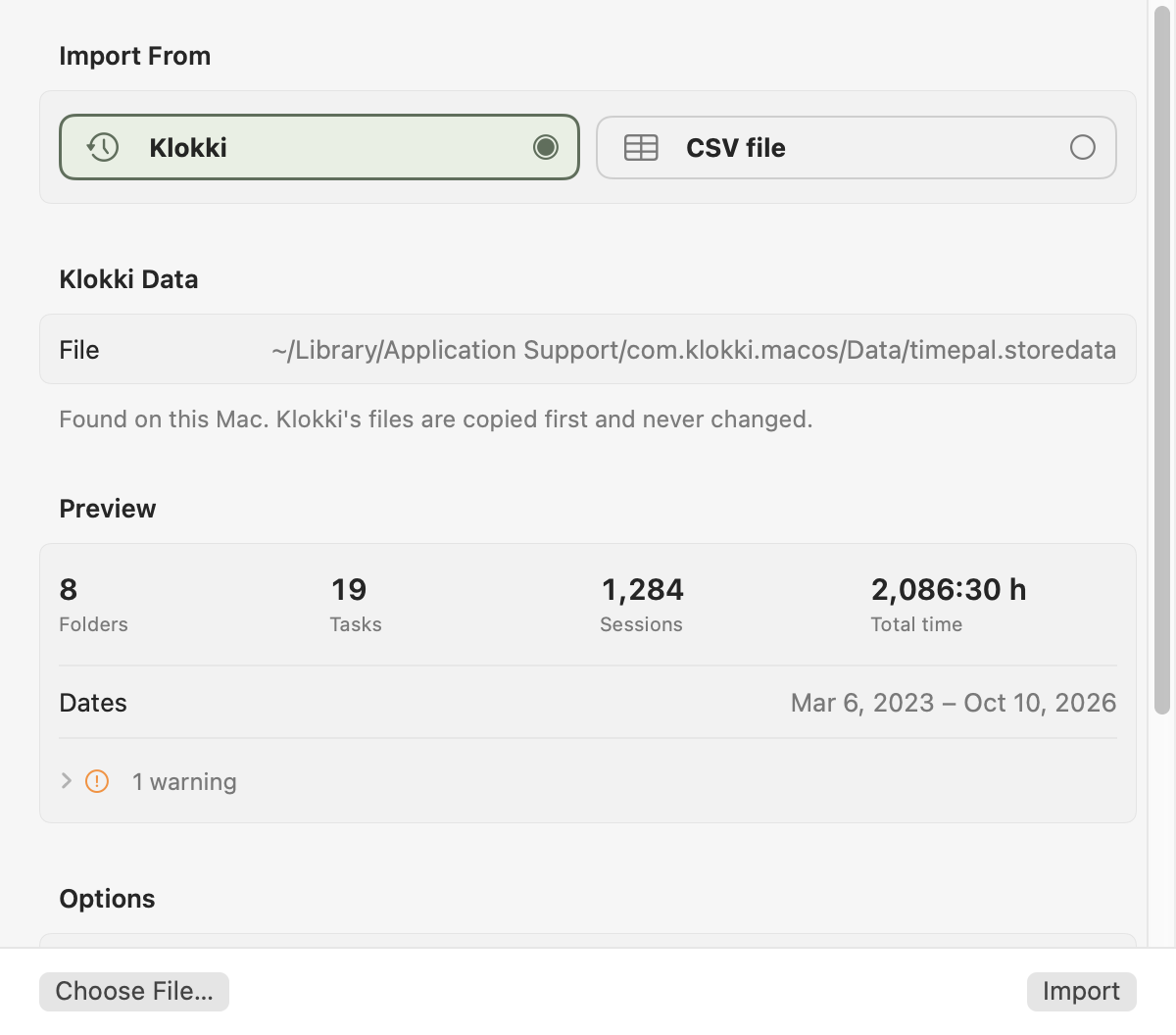
Freelime's Settings with Import From showing two choices, Klokki and CSV file. Klokki is chosen, with a preview of its folders, tasks, sessions, total time and dates. Below are the Choose File and Import buttons. The figures are sample data.

Settings › Import. The figures are sample data.

Before you start

Export a detailed CSV from your current tool.

Freelime reads the file, not your account. These steps follow each tool's help as of October 2026. Menus change, so check the linked page.

Toggl Track

  • Open the Detailed report and export it as CSV. CSV needs a paid plan; the free plan exports PDF.
  • Set your profile's Duration format to Improved first, as Toggl's help advises.
  • A report covers up to a year, so export a longer history a year at a time.
  • Help: Exporting data, Moving data between workspaces.
Clockify

  • Open Reports › Detailed, click Export and choose CSV. CSV needs the Basic plan or higher; the free plan exports PDF.
  • Help: Detailed report.

Harvest

  • Go to Reports › New report › Detailed time, choose a timeframe, run the report and export it as CSV. Use the standard CSV export rather than Export › Custom, so every column comes along.
  • Help: Detailed time and detailed expense reports.

Any other tool

  • Any CSV with a date and either start and end times or a duration works. Freelime guesses common column names, and you choose what each column holds.

What Freelime reads

It knows the export by its columns.

Presets for Toggl Track, Clockify and Harvest recognize a file by its column names, never their order: “Looks like a Toggl Track export”. Guessed wrong? Change it in the Import as menu.

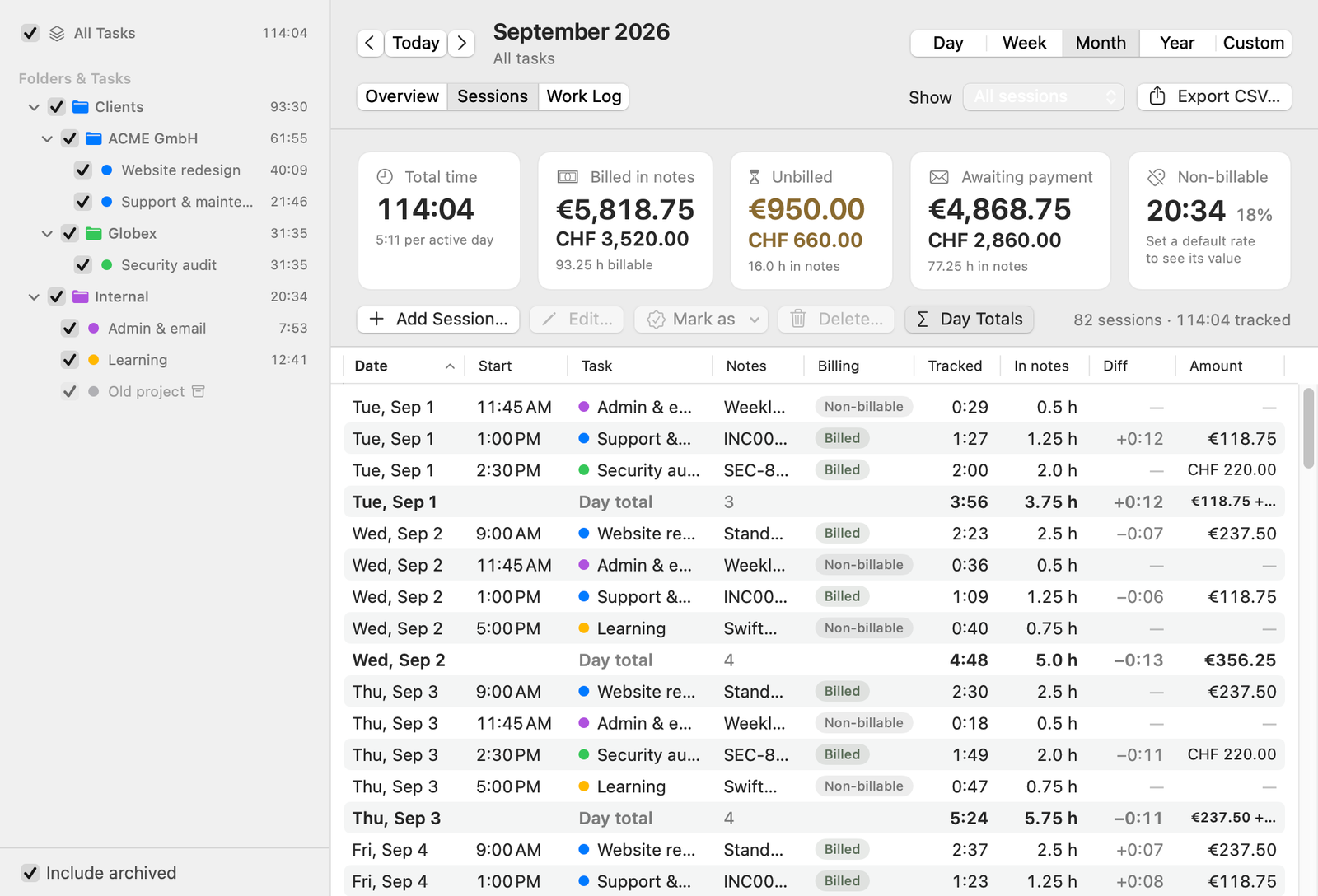
Freelime Reports, Sessions tab: a table of sessions with a Billing column showing Billed and Non-billable, the time tracked, the hours in notes and the amount. The figures are sample data.
Billing status in Reports › Sessions. Sample data.

What comes across

  • Each row becomes one session, timed from its start and end, or from its duration.
  • Client becomes a folder and project a task, with the tool's own task at the start of the note. Or make the project the folder, and put everything inside one folder if you like.
  • Invoiced entries arrive as Billed, non-billable ones as Non-billable, the rest as Unbilled. Billed entries come without a billed date; you can add one later in Reports.
  • Rates and currencies when the file has them, or a rate worked out from its amount and hours. A rate of 0 means none, so the rate you set in Freelime applies.
  • Notes without hours get them, as “(1.5h)” or “Tracked (1.5h)” depending on what the task bills, unless you turn that off. Hours are never counted twice.
  • Jira keys and ServiceNow numbers in notes are recognized, as in any note. Freelime reads them; it doesn't connect to or sync with Jira or ServiceNow. More in Jira and ServiceNow time tracking.

What it asks, and what it leaves out

  • Freelime works out date order, decimal separator and 12-hour times from every row, and asks when dates could go either way (03/04/2026).
  • Times use your Mac's time zone unless they state their own or you choose another. Toggl's file doesn't say which zone it uses.
  • Entries with a date and hours but no start and end, as Harvest usually exports, are placed one after another each day from 9:00, or a time you choose.
  • A file with several people imports the one with the most entries, unless you tick others.
  • Left out: totals rows, Clockify's breaks, entries without time, other people's entries, rows already in Freelime and Harvest's cost columns.

How it works

Import in three steps.

  1. File and formats

    Choose CSV file in Settings › Import and open your export with the Choose File… button. Freelime asks only what the file leaves open.

  2. Columns

    Each column shows a few values and a menu for what it holds, prefilled for Toggl Track, Clockify and Harvest, and remembered per app.

  3. Review

    See what would happen before anything changes, then click the Import button.

What the review shows

Sessions and hours; the folders and tasks it would create; the file's own total, if it has one, against its rows; rows left out, and why. Save Problem Rows… writes rows that can't be imported to a CSV you can correct and import again.

Safe to try

Preview first, back up first, undo any time.

  • You see a preview first.

    Nothing changes until you click the Import button.

  • A backup comes first.

    If Freelime already holds data, it saves a backup first. Then it adds everything in one step: all of it or nothing.

  • Importing twice is safe.

    Rows already in Freelime are recognized, so the same file again adds only what's missing. A session you deleted counts as missing.

  • You can undo it.

    “Undo This Import” removes the sessions the import added, and the folders and tasks it created if nothing else is in them. No time limit.

Sessions you changed since are kept unless you say otherwise. Settings › Import › Recent Imports lists every import with its file, date, sessions and hours, and Undo… while something of it is left.

What you're switching to

A Mac menu bar tracker, for one person.

What it is

  • A timer in the menu bar. No automatic tracking: you start it, and idle detection asks before counting time you were away.
  • Works offline. Data stays in a database on your Mac, with backups to your iCloud Drive or a folder you choose. No account and no Freelime server for your data. A paid version is planned to check its subscription online (how the license would work).

Good to know

  • Made for one person: no teams, and no sync between Macs or people.
  • It doesn't write invoices.
  • Mac only, with Apple silicon (M1 or later): no Windows, web or iPhone app. The minimum macOS version will be announced before release.

Coming from Klokki instead?

Freelime imports Klokki's own data, not a CSV. Read how the Klokki import works.

FAQ

Questions

Can I keep my old tool for a while?

Yes. Export again later and import the new file: rows already in Freelime are skipped. An entry you changed in your old tool after the first import can come in again, so check the review. Don't run both timers at once, or hours are tracked twice.

Will imported hours bill correctly?

Each session bills what its task bills: tracked time by default, or the hours in its notes if you chose that in Settings › Billing. The hours go into the notes either way, unless you turn that off, so a later change bills the same hours. More in Bill hours from your notes.

Waitlist

Want Freelime on your Mac?

Freelime isn't on sale yet. Whether it's released as a paid Mac app depends, among other things, on how many people sign up. If it is, you'll hear about it by email. It's planned as a subscription: monthly, with a cheaper yearly option. The price isn't set. Joining is free and doesn't commit you to buying.

Join the waitlist

The form has an optional question about what you use for time tracking today. If that's Toggl Track, Clockify or Harvest, say so.